

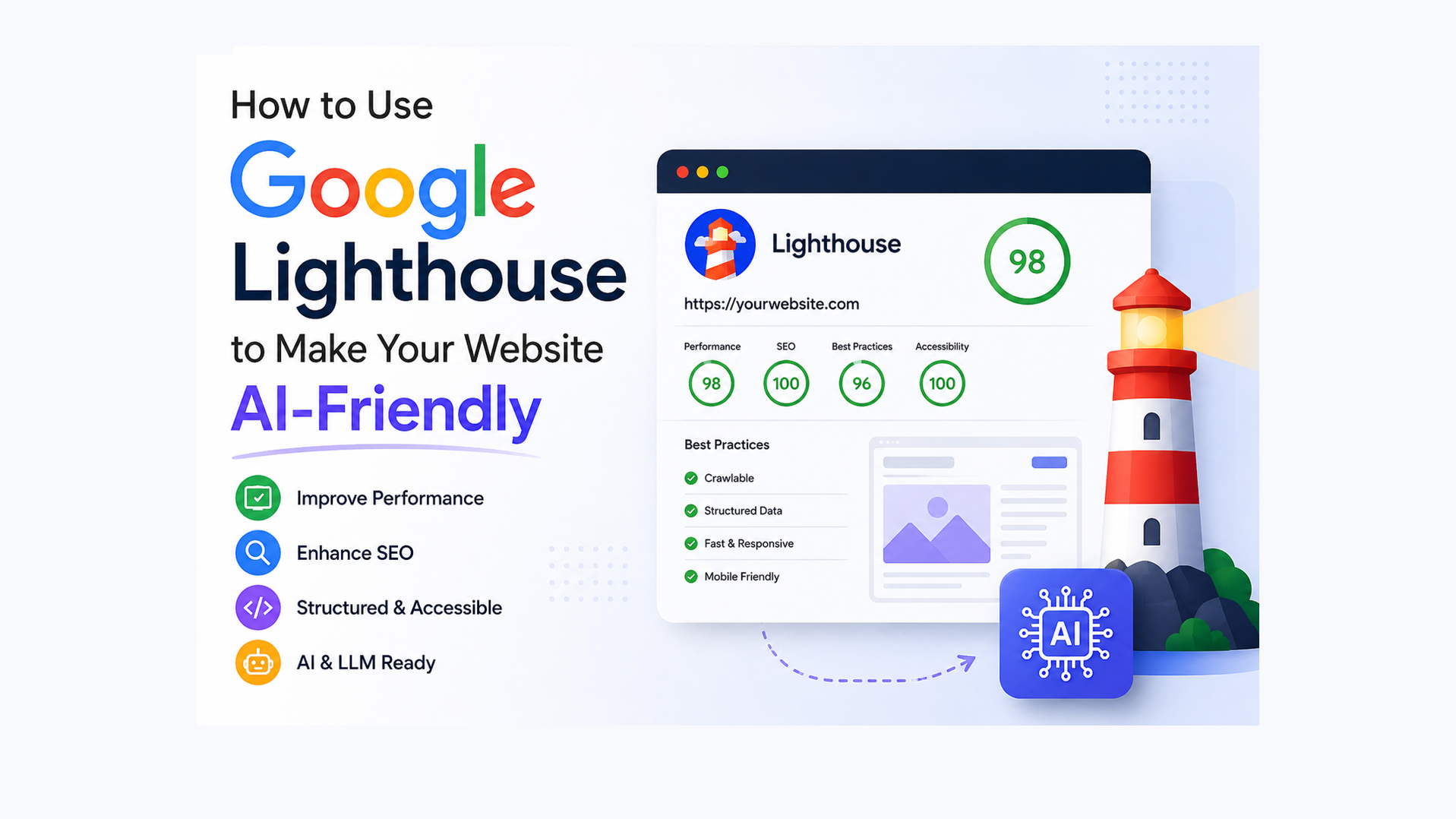
How to Use Google Lighthouse to Make Your Website AI-Friendly

AI agents are already browsing the web on behalf of real users. They book appointments, fill out forms, find products, and gather information — all without a human clicking a single button. And Google just released a tool to tell you exactly how ready your website is for them.
It is called the Lighthouse Agentic Browsing report, and it is built right into Chrome. No paid tools. No extra software. You can run it today.
What Is the Lighthouse Agentic Browsing Report?
Google Lighthouse is a free, open-source tool that audits websites for performance, accessibility, and SEO. You have probably used it before. In Lighthouse version 13.3, released in May 2026, Google added a brand-new category: Agentic Browsing.
This category does not give your site a score from 0 to 100. Instead, it shows a pass/fail ratio — for example, "3 out of 4 checks passed." That is because the standards for the agentic web are still taking shape. The goal right now is to give you clear signals, not a final grade.
One important thing to know upfront: this report is still marked as experimental. Even Google's own documentation page fails some of its own agentic checks. That tells you how early we are in this process — and why getting started now puts you ahead.
How AI Agents Actually "See" Your Website
Before you run the report, it helps to understand how AI agents browse.
When an agent visits your page, it can read your site in three ways:
- Screenshots — a visual snapshot of what the page looks like
- HTML source code — the raw markup of your page
- The accessibility tree — a simplified, structured map of your page's interactive elements
The accessibility tree is the most efficient. It is the same structure that screen readers use. If your accessibility tree is clean and well-labeled, an AI agent can quickly find buttons, links, forms, and key content. If it is broken or incomplete, the agent struggles — just like a screen reader would.
This is the foundation of what Lighthouse now checks.
How to Run the Agentic Browsing Report
You have three options, depending on your setup.
Option 1 — Chrome Canary (recommended for developers)
Chrome Canary is Google's early-access browser. Download it free from google.com/intl/en/chrome/canary. Once installed, open your website, right-click anywhere on the page, select "Inspect," go to the Lighthouse tab, and choose the "Agentic Browsing" category. Hit "Analyze page load" and wait about 30 seconds.
Option 2 — Lighthouse command line
If you prefer working in a terminal, install the latest version with:
npm install -g lighthouse@latest
Then run:
lighthouse --view https://yourwebsite.com
This method works well if you want to integrate agentic checks into a CI/CD pipeline.
Option 3 — DebugBear (no install needed)
Go to debugbear.com/test/website-grader, enter your URL, and open the Lighthouse tab once the test finishes. This is the fastest option if you just want a quick look. Note: PageSpeed Insights still runs an older version of Lighthouse and does not yet include this category.
The 4 Checks and What They Mean
1. Agent-Centric Accessibility
This is the most important check. Lighthouse scans your accessibility tree and looks for:
- Every button, link, and form field having a clear, readable label
- Correct parent-child relationships between page elements
- No interactive elements hidden from the accessibility tree
How to fix it: Use semantic HTML. Add proper ARIA labels where needed. Run your existing Lighthouse Accessibility audit alongside this one — the fixes overlap significantly.
2. WebMCP Integration
WebMCP stands for Web Machine Control Protocol. It is a proposed web standard that lets you tell AI agents exactly how to interact with your site's tools and forms — rather than leaving them to guess.
There are two types:
- Declarative WebMCP — you wrap simple code around an HTML form, and agents know how to use it
- Imperative WebMCP — JavaScript-based, for more complex back-and-forth agent interactions using navigator.modelContext.registerTool
Lighthouse checks whether your forms are annotated and whether the annotations match the expected schema.
Do you need it right now? Only if your site has tools, forms, or functionality that AI agents will actively use. Most informational or blog sites can skip this for now.
3. llms.txt Discoverability
An llms.txt file sits at your domain root — similar to robots.txt — and provides a markdown-formatted summary of what your site is and what agents are allowed to do on it.
Lighthouse checks:
- Does the file exist?
- Does it have an H1 heading?
- Is it long enough to be useful?
- Does it contain links to important pages?
Critical distinction: llms.txt is NOT a Google Search ranking factor. Google has confirmed this. It exists to help agents understand your site at the moment they are using it — not to influence organic search.
Who needs it today? Sites with agentic functionality — booking tools, e-commerce, SaaS platforms. If your site is primarily informational, you can add it as a future-proofing measure, but it will not move your rankings.
4. Layout Stability (CLS)
This check reuses your existing Cumulative Layout Shift score and surfaces it inside the Agentic Browsing category. The reason it matters for agents: AI agents interact with your page faster than humans do. If your layout shifts while an agent is trying to click a button, it will click the wrong thing — or fail entirely.
Common causes of layout shifts: images without defined dimensions, ads that load late, and JavaScript that injects content after the page has rendered.
How to fix it: Set explicit width and height on all images and embeds. Reserve space for ad slots before they load. Minimize JavaScript that rearranges content after the initial render.
What to Fix First: A Priority Order
Most websites only need two things to pass the core agentic checks:
- Fix the accessibility tree first. Add labels to every interactive element. Correct invalid ARIA roles. This is the highest-impact change and it benefits human users and screen reader users too.
- Reduce layout shifts second. Add image dimensions. Reserve ad space. This is a quick technical fix with broad performance benefits.
- Add llms.txt and WebMCP when relevant. If your site has forms, booking flows, or interactive tools that agents will use, implement these now. If not, add them to your roadmap for the next six months.
Frequently Asked Questions
Does my Agentic Browsing score affect Google Search rankings?
No. This report measures how well your site works for AI agents browsing and using your site — not how it ranks in search results.
Do I need an llms.txt file right now?
Not urgently, unless your site has forms or tools that AI agents will interact with. For content or informational sites, it is a good future-proofing step, not an immediate requirement.
Is WebMCP the same as Model Context Protocol (MCP)?
No. Standard MCP runs on a server and connects AI tools to external systems. WebMCP runs in the browser and is specifically designed for front-end interactions within a visitor's browsing session.
Why does my score fluctuate between runs?
Dynamic JavaScript tool registration and changes to your DOM can affect results between runs. If you use the imperative WebMCP API, the timing of tool registration can vary depending on when scripts load.
The Bottom Line
The Lighthouse Agentic Browsing report is the clearest signal yet that Google is preparing developers for a web where AI agents are active users — not just crawlers. The good news is that the two most important fixes (accessibility tree and layout stability) are things you should already be working on for SEO and user experience.
Run the report this week using Chrome Canary or DebugBear. See where you stand. Start with accessibility. Then build toward WebMCP and llms.txt as your site's agentic use cases grow.
The websites that adapt early will be the ones agents recommend, use, and return to.
Ready to audit your site?
Run your free Agentic Browsing report now using the DebugBear website grader at debugbear.com/test/website-grader — no account or install required. For deeper accessibility fixes, open your standard Lighthouse report in Chrome DevTools and work through the Accessibility category alongside your agentic results.
Get A Quote
Reach Out and Bring Your Visions to Life
Get A Quote
Reach Out and Bring Your Visions to Life